
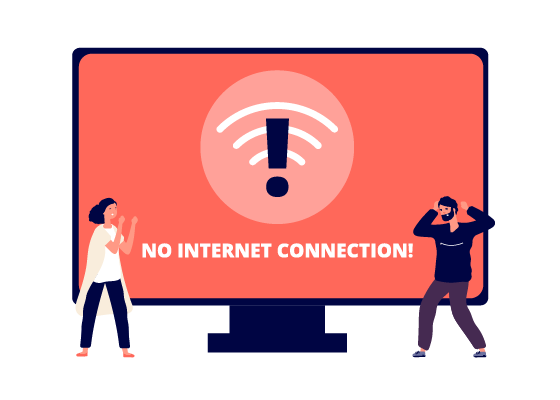
Experiencing slow internet speeds, spotty Wi-Fi, or complete connection drops? Frustrations with your internet connection are all too common. In today’s connected world, having a reliable internet connection is more important than ever. If you’re struggling with these issues, don’t throw in the towel yet – there are steps to fix the problem! Let’s dive into troubleshooting common internet problems.
Understanding the Problem: Speed Tests and Connection Types
- Take a Speed Test: Start by running a reliable internet speed test. Several great online tools provide insights into your download and upload speeds. Compare the results to the speeds promised by your Internet Service Provider (ISP). Significant discrepancies could indicate a problem on their end.
- Wired vs. Wireless:\ Are you experiencing the problem on a Wi-Fi or wired device (Ethernet) device? Isolating the issue helps determine where the problem lies – with your Wi-Fi network or broader internet connection.
Basic Troubleshooting: Simple Solutions
- The Power of a Restart: Modems and routers need an occasional refresh like our computers. Unplug both devices, wait at least 30 seconds, and then plug them back in. This simple solution often works wonders.
- Check Your Cables: Inspect your cables for damage or loose connections. Ethernet cables should be securely plugged in, and coax cables (if you have cable internet) should be hand-tightened. Replace damaged cables when needed.
- Wi-Fi Router Placement: Your router’s location is crucial for optimal Wi-Fi signal. Place it in a central, elevated position away from walls, furniture, and electronic devices that could cause interference.
- Test Other Devices: Is the issue isolated to a single device, or are multiple devices affected? Testing other devices will help pinpoint whether it’s a widespread problem or device-specific problem.
Advanced Troubleshooting: Further Fixes
- Outdated Router Firmware: Your router’s firmware is essential software that needs updates. Log into your router’s settings (check the manufacturer’s instructions) and check for available firmware updates.
- Check for Network Congestion: Your speeds may suffer if multiple people use your internet connection for high-bandwidth activities like streaming or gaming. Try limiting bandwidth-intensive activities or consider upgrading your internet plan.
- Outdated Device Drivers: Outdated network drivers on your computer can hinder internet performance. Check for updates for your Wi-Fi and Ethernet adapters.
- DNS Issues: Your Domain Name System (DNS) server translates website names into IP addresses. Try switching to a public DNS server like Google (8.8.8.8) or Cloudflare (1.1.1.1) for potentially faster resolution.
When to Call Your ISP
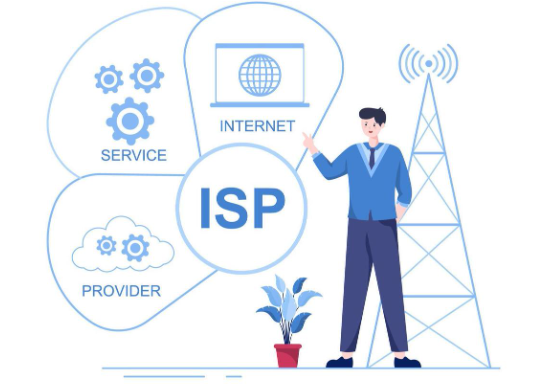
If you’ve tried all these troubleshooting steps and the problem persists, it’s time to contact your internet provider. They can perform diagnostic tests, check for potential service outages in your area, and dispatch a technician if needed.
Additional Tips
- Change Your Wi-Fi Channel: If you live in a crowded area, your Wi-Fi signal might compete with neighboring networks. Use a Wi-Fi analyzer app to find less congested channels.
- Consider a Wi-Fi Extender: If your Wi-Fi signal doesn’t reach all areas of your house, a Wi-Fi extender or mesh system can broaden your coverage.
Maintaining a Healthy Connection
Regularly checking your internet speeds, optimizing your router placement, and updating your devices’ software will ensure a seamless connection for all your online activities.
Related Posts
How to Easily Clean It Up and Free Up Disk Space in 5 Seconds.
Does your computer feel sluggish, taking forever to load programs…
How To quickly Change Computer Password in 1 minute to lower Data Breach.
Changing your computer password regularly is critical for maintaining strong…
The Aviator Game: A Comprehensive Guide
What is Aviator? Aviator is an increasingly popular online gambling…