
Even the most reliable software occasionally misbehaves. Whether a program crashes unexpectedly, refuses to open, or becomes frustratingly slow, knowing how to troubleshoot is essential for a smooth computing experience. This guide tackles common program issues in both Windows and macOS, helping you get your applications back on track.
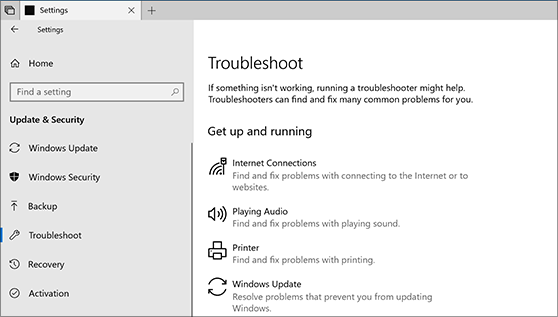
Basic Troubleshooting Techniques
Before diving into OS-specific solutions, consider these universal steps:
- Restart: The classic “turn it off and on again” solution often fixes temporary glitches. Try restarting the problem program first, and if that fails, reboot your entire computer.
- Updates: Keep your operating system and applications updated. Check for pending updates within the program’s settings or in the Windows Update center/Mac App Store.
- Close Background Programs: Too many programs running can strain resources. Close unnecessary applications to free up memory. Use the Task Manager (Windows) or Activity Monitor (macOS) to identify and terminate resource-hogging processes.
Windows-Specific Troubleshooting
- Task Manager: The Task Manager is your Windows troubleshooting hub. Open it (Ctrl+Shift+Esc) to see running programs, end unresponsive ones, and monitor resource usage.
- Compatibility Mode: Run older programs designed for earlier Windows versions in compatibility mode. Right-click on the program’s executable, go to “Properties” and the “Compatibility” tab.
- Safe Mode: If problems persist, boot into Safe Mode (search online for instructions) to isolate issues. If the program works in Safe Mode, third-party software or drivers might be the culprit.
- System File Checker: Use the SFC tool to scan for corrupt system files. Open an elevated command prompt (search for “cmd”, right-click, “Run as Administrator”) and type “sfc /scannow”.

macOS-Specific Troubleshooting
- Force Quit: If a Mac program freezes, use the Force Quit menu (Option+Command+Esc) to end it.
- Activity Monitor: Like Windows’ Task Manager, the Activity Monitor reveals running processes and resource usage. Find it in Applications > Utilities.
- Disk Utility: Use Disk Utility (within Applications > Utilities) to “First Aid” your hard drive and repair potential disk errors.
- Safe Mode: macOS has Safe Mode too. Hold the Shift key while booting to troubleshoot in a streamlined environment.
- Reinstall: If all else fails, uninstall the problematic application and then reinstall a fresh copy.
Additional Tips
- Error Messages: Pay attention to error messages; they often provide clues. Search online with the exact message to find explanations and potential solutions.
- Online Resources: Utilize tech forums, support websites, and the software developer’s knowledge base for specific guidance.
- Malware Scans: Run anti-malware software to rule out infection as a possible cause of program instability.
SEO Keywords
- Troubleshooting programs
- Windows troubleshooting
- macOS troubleshooting
- Program crashes
- Unresponsive programs
- Software errors
Disadvantages of Not Troubleshooting Programs
- Escalation of Issues: Small problems often snowball into major malfunctions if left unchecked. A minor glitch today could become a full-blown system error tomorrow. Proactive troubleshooting prevents things from worsening significantly.
- Productivity Loss: Malfunctioning programs severely hinder productivity. The time spent trying to work around bugs or waiting for an unresponsive application is time wasted.
- Data Loss: Corrupted programs can lead to data corruption or loss. Imagine losing critical documents, project files, or precious saved game data because of an issue that could have been troubleshot before it was too late.
- Security Risks: Some program errors stem from vulnerabilities that hackers can exploit. Outdated software or unpatched bugs open your system to potential security breaches. Troubleshooting keeps things up-to-date.
- Hardware Damage: In rare but severe cases, ignored program errors might affect hardware components. For instance, overheating issues caused by a misbehaving program could potentially damage parts of your computer.
- Increased Frustration: Nothing is more frustrating than software misbehaving with no solution in sight. Not troubleshooting leads to unnecessary stress and a negative user experience.
- Missed Opportunities: Troubleshooting helps you understand your software better. You might discover hidden features, shortcuts, or ways to improve performance that you wouldn’t have found if you hadn’t dug into an issue.
The Importance of Taking Action
Don’t underestimate the impact of not troubleshooting. Even seemingly minor issues can have significant negative consequences if ignored. Investing time in identifying the root cause of program malfunctions saves you time, data, and a whole lot of potential headaches down the road.
Conclusion
Troubleshooting programs requires patience and methodical investigation. Using this guide, you can diagnose and often resolve common software issues, restoring productivity and minimizing frustration.
Related Posts
How to Fix Common Microsoft Office Problems easily in 5 minutes(Word, Excel, etc.)
Microsoft Office is a powerful suite of productivity tools used…

Best Gyms and Spas in Ridgeways
Unlock a healthier lifestyle with Ridgeways' top-notch gyms and spas.…
Comprehensive Guide to Healthcare Facilities in Ridgeways, Kenya
Introduction Proper healthcare is every human being's right, and residential…