
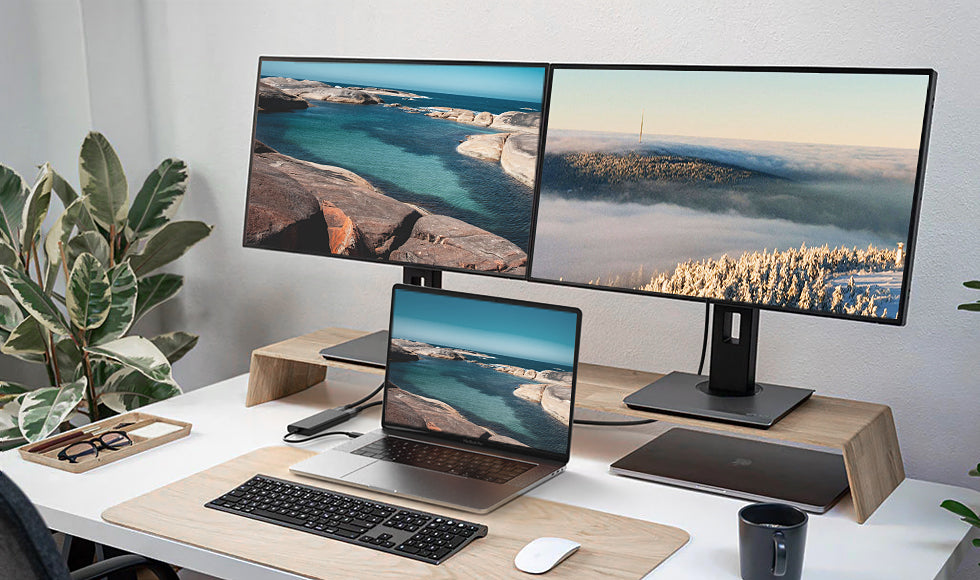
External monitors in a world of multitasking and the need for more screen real estate, connecting your computer to an external monitor can be a game-changer. Whether you’re a graphic designer seeking a larger canvas, a gamer wanting a more immersive experience, or an office worker tackling multiple spreadsheets, an external monitor boosts productivity and enhances your overall computing experience.
This guide will walk you through the simple steps involved in setting up your external monitor, helping you reap the benefits of a multi-screen setup.
Understanding the Benefits of an External Monitor
- Enhanced Productivity: An external monitor significantly increases your available screen space, allowing you to work with multiple programs side-by-side, streamlining your workflow.
- Immersive Entertainment: Larger displays transform your viewing experience. Movies, games, and creative projects become more engaging.
- Improved Ergonomics: With an external monitor, you can adjust the position and height of your screen for optimal viewing, reducing neck and eye strain.
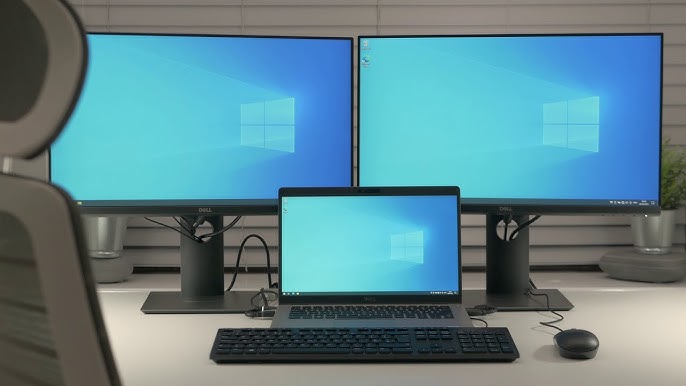
Step-by-Step Guide
1. Identify Your Connectors
The first step is to identify the video output ports on your computer and the corresponding input ports on your external monitor. Here are the most common types of connectors:
- HDMI: The most widely used standard, offering high-quality digital video and audio transmission.
- DisplayPort: Provides similar capabilities to HDMI, often found in high-end monitors and graphics cards.
- USB-C: This versatile port can transmit video, audio, and data. Newer computers and monitors may feature USB-C ports with display output capabilities.
- VGA: An older analog standard still present in some legacy devices.
2. Choose the Right Cable
Once you’ve identified the connectors, select a cable that matches the ports on both your computer and monitor. If the ports are the same (e.g., HDMI to HDMI), then a standard cable will suffice. If the ports differ, you’ll need an adapter or a cable with the appropriate connectors on each end (e.g., USB-C to HDMI).
3. Connect the Cable
Securely plug one end of the cable into your computer’s video output port and the other end into the monitor’s input port. Ensure the connectors are properly aligned and inserted fully.
4. Power On and Detect
Turn on both your computer and the external monitor. In most cases, your computer should automatically detect the new display and extend your desktop onto it. If the monitor doesn’t respond, proceed to the next step.
5. Configure Your Display Settings
Access your computer’s display settings to adjust the configuration of your external monitor. Here’s how:
- Windows: Right-click on your desktop and select “Display Settings.”
- MacOS: Click the Apple icon, select “System Preferences,” and then click “Displays.”
Within the display settings, you can:
- Choose Display Mode: Select whether to duplicate your computer’s display on the external monitor (“mirroring”) or extend your desktop workspace across both screens.
- Set Resolution: Adjust the resolution of the external monitor to its optimal setting.
- Arrange Displays: Drag and drop the screen icons to match the physical arrangement of your monitors.
Troubleshooting Tips
- Check Cable Connections: Ensure all cables are securely connected and inserted fully at both ends.
- Update Graphics Drivers: Outdated graphics drivers can sometimes cause compatibility issues. Download the latest drivers from your graphics card manufacturer’s website.
- Manual Detection: If your computer doesn’t automatically detect the external monitor, there’s usually an option to “Detect Displays” within your operating system’s settings.
Maximizing Your External Display Experience
- Consider a Dual-Monitor Mount: Mounting your external monitor on an arm or stand enhances flexibility and improves ergonomics.
- Utilize Software Features: Some operating systems and third-party tools offer advanced display management features for optimal multi-monitor setups.
- Upgrade to a Larger Monitor: If you need even more space, upgrade to a larger external display for a truly transformative experience.
- Consider a Projector: A projection system can be a versatile solution for presentations or large-format viewing.
FAQ
What is the external monitor?
Do I really need an external monitor?
Can a portable monitor be used as a second monitor?
How do I connect an external monitor to my computer?
Related Posts
How to Fix Common Microsoft Office Problems easily in 5 minutes(Word, Excel, etc.)
Microsoft Office is a powerful suite of productivity tools used…
How to Easily Clean It Up and Free Up Disk Space in 5 Seconds.
Does your computer feel sluggish, taking forever to load programs…
How to Easily Troubleshoot a Computer That Won’t Power On in 1 Second.
Facing a computer that refuses to power up can be…