
A corrupted Windows installation can be a frustrating experience. From system crashes and sluggish performance to missing files and error messages, it wrenches your workflow. But before you resign yourself to a complete reinstall, there are ways to potentially repair your system and get it back up and running smoothly.
This SEO-optimized guide will walk you through several methods to fix a corrupted Windows installation, from built-in tools to troubleshooting steps.
Why Does Windows Get Corrupted?
Several factors can contribute to a corrupted Windows installation:
- Malware: Malicious software can damage system files and disrupt system processes.
- Hardware Failure: Faulty hard drives or RAM issues can lead to corrupted data.
- Power Outages or Surges: Unexpected power disruptions can interrupt data writing and cause file system inconsistencies.
- Software Conflicts: Incompatible software or driver installations can sometimes corrupt system files.
- Accidental User Error: Unintentionally deleting critical system files or modifying registry settings can lead to problems.
Signs of a Corrupted Windows Installation
- Frequent System Crashes: Blue screens of death (BSODs) or unexpected application crashes can indicate underlying system issues.
- Error Messages: Pop-up error messages related to missing or corrupted files can be a symptom of corruption.
- Slow Performance: Laggy system response, slow boot times, or sluggish application performance can all point towards corruption.
- Missing Files or Features: Certain programs or functionalities might be unavailable due to missing or corrupted system files.
- Unusual System Behavior: Erratic behavior like unexpected restarts, freezing applications, or difficulty launching programs can signal corruption.
Important Note: Before attempting any repairs, it’s highly recommended to back up your important data. This ensures you don’t lose valuable files in case the repair process goes awry.
How to Fix a Corrupted Windows Installation (Methods):
1. System File Checker (SFC):
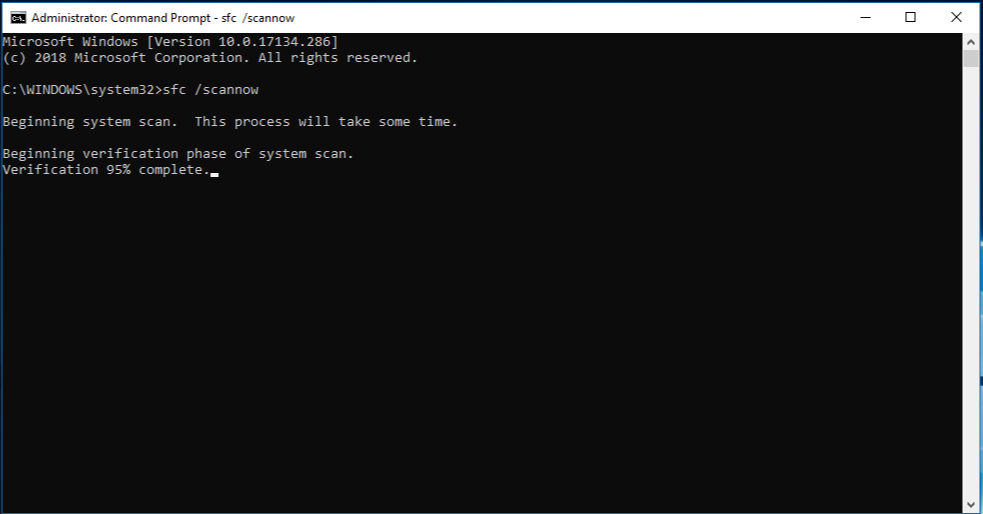
- Built-in Repair Tool: Windows includes a handy tool called System File Checker (SFC) that can scan for and repair corrupted system files.
- How to Run SFC:
- Open Command Prompt as Administrator (search for “Command Prompt,” right-click and select “Run as administrator”).
- Type
sfc /scannowand press Enter. - SFC will scan your system and attempt to repair any corrupted files it finds. The process may take some time, so be patient.
2. Deployment Image Servicing and Management (DISM):
- Advanced Repair Tool: If SFC doesn’t resolve the issue, DISM (Deployment Image Servicing and Management) can be used for more extensive repairs.
- How to Run DISM:
- Open Command Prompt as Administrator (as in step 1).
- Type the following command and press Enter:
DISM /Online /Cleanup-Image /RestoreHealth - This process can take significantly longer than SFC, so be prepared to wait.
3. System Restore:
- Back in Time: System Restore allows you to revert your system to a previous point in time known as a “restore point.” If you suspect the corruption occurred recently, a restore point might be the solution.
- How to Use System Restore:
- Search for “Create a restore point” in the Windows search bar.
- Click “System Restore” and follow the on-screen instructions to choose a restore point before the corruption might have occurred.
4. Reset This PC (Reinstallation Options):
- Fresh Start: If the previous methods fail, a reset might be necessary. This option allows you to choose between keeping your personal files (apps will be uninstalled) or performing a clean reinstall.
- How to Reset This PC:
- Go to Settings > Update & Security > Recovery.
- Under “Reset this PC,” choose either “Keep my files” or “Remove everything.”
- Follow the on-screen instructions to complete the reset process.
5. Advanced Troubleshooting (For Experienced Users):
- Bootrec.exe and chkdsk: Advanced users can attempt specific commands like Bootrec.exe (for boot sector repairs) or chkdsk (for checking hard drive errors) through the Command Prompt. However, these tools demand caution and a solid understanding of their functions to avoid further complications.
Related Posts

How to Easily Fix Common Internet Connection Problems: A Troubleshooting Guide in 5 minutes
Experiencing slow internet speeds, spotty Wi-Fi, or complete connection drops?…
Schools in Ridgeways Nairobi
Schools in Ridgeways, education stands as a powerful catalyst for…
Top 10 Banks and Financial Institutions in Ridgeways, Kenya: A Comprehensive Guide
Introduction Financial institutions are the backbone of economic development in…