
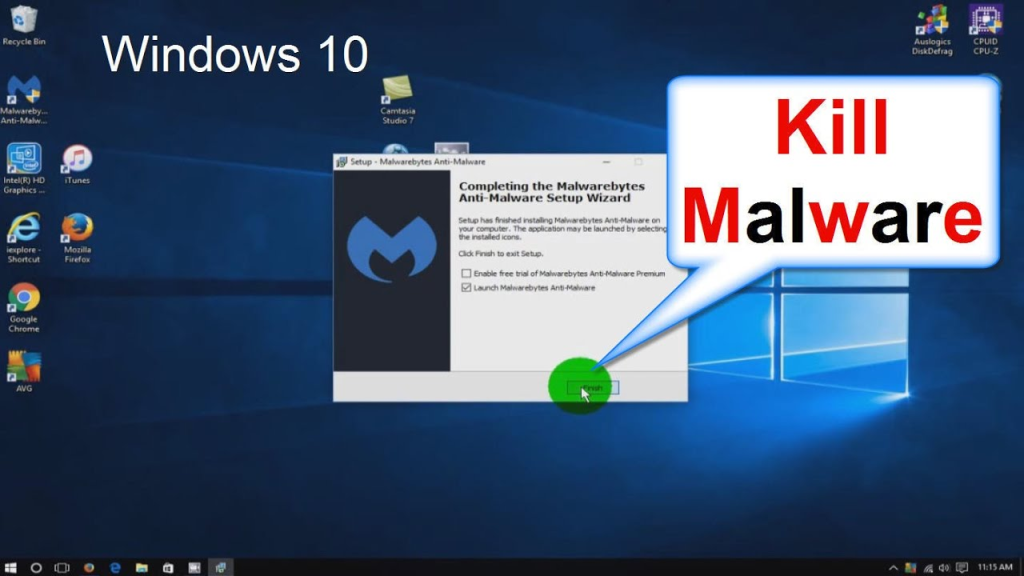
A slow laptop, strange pop-ups, and unexplained shutdowns could be signs of malware infection. Malware, short for malicious software, encompasses a wide range of harmful programs like viruses, spyware, and adware, all designed to disrupt or damage your device and steal your personal information.
Knowing how to identify and remove malware is crucial in protecting your device and safeguarding your data. This guide will equip you with the knowledge to:
- Recognize the signs of a malware infection.
- Safely remove malware from your device.
- Prevent future malware infections.
Common Signs of a Malware Infection:
- Decreased System Performance: Malware can hog system resources, leading to a significant slowdown in your device’s performance. This can manifest as slow startup times, sluggish application response, and frequent freezing.
- Unusual Pop-ups and Advertisements: An influx of intrusive pop-ups and advertisements, often containing irrelevant or misleading content, can be a sign of adware infection.
- Unexpected Browser Redirects: When browsing the web, you might find yourself redirected to unfamiliar or unsafe websites, potentially exposing you to further malware threats.
- Unexplained System Changes: Unexpected changes to your device’s settings, such as a new home page or default browser, can be indicative of malware tampering.
- Frequent System Crashes and Blue Screens: Frequent crashes and blue screens (Windows) or kernel panics (Mac) can be caused by malware interfering with your device’s core functions.
- Disappearance of Files or Programs: Malware might delete or hide important files and programs, hindering your ability to access essential data and applications.
- Increased Network Activity: Unusual spikes in network activity, even when you’re not actively using the internet, can indicate malware communicating with remote servers and potentially exfiltrating data.

Steps to Remove Malware:
1. Stop, Isolate, and Backup:
- Disconnect your device from the internet: This prevents the malware from spreading or downloading additional harmful components.
- Shut down non-essential programs: Close any applications you’re not actively using to minimize potential interference with the removal process.
- Back up your data (if possible): If your device is still functional, creating a backup of your important files is recommended. However, exercise caution and avoid connecting external storage drives if malware is suspected to be particularly invasive.
2. Update Your Operating System and Security Software:
- Install the latest updates for your operating system and security software: These updates often contain critical security patches that can help identify and address known malware threats.
3. Scan for Malware:
How to Identify Malware and Remove It from a Computer
A slow laptop, strange pop-ups, and unexplained shutdowns could be signs of malware infection. Malware encompasses harmful programs like viruses, spyware, and adware, designed to disrupt or damage your device and steal personal information. To remove malware, follow these steps:
Stop, Isolate, and Backup. Update your operating system and security software. Scan for malware.
Stop, Isolate, and Backup.
Update your operating system and security software.
Scan for malware.
Remove malware using a reputable antivirus program.
Regularly update your antivirus software to prevent future infections.
A slow laptop, strange pop-ups, and unexplained shutdowns could indicate a malware infection. To remove malware, follow these steps:
Stop, Isolate, and Backup.
Update your operating system and security software.
Scan for malware.
Remove malware using a reputable antivirus program.
Regularly update your antivirus software to prevent future infections.
Knowing how to identify and remove malware is crucial in protecting your device and safeguarding your data. This guide equips you with the knowledge to spot common signs of a malware infection and provides steps to remove it:
Common Signs of a Malware Infection:
Steps to Remove Malware:
1. Stop, Isolate, and Backup:
2. Update Your Operating System and Security Software:
3. Scan for Malware:
- Run a full system scan using your existing security software: Most reputable antivirus and anti-malware programs offer comprehensive scanning capabilities to detect and remove malware.
- Consider using a dedicated anti-malware scanner: If your primary security software fails to detect the threat, consider using a well-regarded, free, on-demand malware scanner from a trusted source.
4. Remove Detected Malware:
- Follow the on-screen instructions provided by your security software or scanner to quarantine or remove the detected threats.
- Be cautious while following removal instructions, as deleting legitimate system files could cause further harm.
5. Restart Your Device and Repeat Scans:
- Restart your device: This allows the changes made by the security software or scanner to take effect.
- Run additional scans to ensure the malware has been completely removed.
Important Considerations:
- If you’re unsure about any step or suspect a severe malware infection, seek professional help from a qualified computer technician. Dealing with complex malware can be risky, and attempting manual removal without proper expertise could worsen the situation.
- Never download or install software from untrusted sources. Malware often disguises itself as legitimate software, so be cautious when downloading programs from the internet.
- Be wary of phishing emails and suspicious links. Phishing scams attempt to trick you into clicking malicious links or downloading infected attachments. Always verify the sender’s identity and legitimacy before interacting with any email content.
Preventing Future Malware Infections:
- Practice safe browsing habits: Avoid visiting untrusted websites and clicking on suspicious links or ads.
- Keep your software up to date: Regularly update your operating system, security software, and web browser to benefit from the latest security patches.
- Only download software from trusted sources: Use official app stores or reputable websites when downloading software.
- Be cautious about opening email attachments: Only open attachments from trusted senders, and be wary of unexpected attachments, even if they appear to come from someone you know.
- Enable a firewall: A firewall helps filter incoming and outgoing network traffic, providing an additional layer of protection against malware attempts.
How to Identify Malware and Remove It from a Computer
Malware, which includes viruses, spyware, and adware, can pose significant threats to your computer’s security and privacy. It is essential to be able to identify and remove malware promptly. This comprehensive guide provides step-by-step instructions on recognizing common signs of a malware infection and effectively eliminating it from your device. By following these recommended steps, you can protect your computer and data from potential harm.
Related Posts
How to Easily Clean It Up and Free Up Disk Space in 5 Seconds.
Does your computer feel sluggish, taking forever to load programs…
Unveiling the Top Refurbished Laptops in Kenya: Powerhouse Portables on a Budget
Looking for a high-performance laptop without breaking the bank? Consider…
Deleted File? How To Easily Recover it in 1 minute.
Accidentally deleting or misplacing a critical file can be a…