

Printer issues may occur in homes and offices, but frustrations arise when they don’t work how they should. Whether your documents won’t print, there are strange error messages, or the printer is completely unresponsive, there are common troubleshooting steps everyone can take to resolve these issues.
Troubleshooting Basics
Before diving in, here are some universal first steps:
- Power Cycling: Turn off your printer, unplug it for about 30 seconds, plug it back in, and turn it on. This often surprisingly fixes simple issues.
- Check connections: If wired, ensure the USB cable is securely plugged into the printer and computer. If wireless, confirm that your printer is connected to your device’s Wi-Fi network.
Troubleshooting Specific Issues
Let’s address some of the most frequent printer problems:
1. “Printer Offline” Message
- Check network: For wireless printers, ensure both printer and computer are on the same Wi-Fi. For wired printers, test the cable and ports.
- Set as default: Right-click your printer in Windows “Devices and Printers” or Mac “System Settings” and ensure “Set as Default Printer” is selected.
- Restart print spooler: In Windows, search “Services,” find “Print Spooler,” right-click, and choose “Restart.”
2. Print Jobs Stuck in Queue
- Clearing the queue: Go to your printer settings, find the print queue, and clear all pending jobs. Attempt to print again.
- Print spooler issue: If clearing doesn’t work, restart the print spooler (see above).
3. Paper Jams
- Locate and remove: Carefully follow the printer’s instructions to find and clear the jam. Avoid ripping the paper to prevent leaving fragments inside the printer.
- Check rollers: Ensure paper rollers are clean and free of debris which can cause misfeeds and jams.
4. Poor Print Quality
- Cartridge check: Make sure ink/toner cartridges aren’t empty. Low levels or faulty cartridges can lead to faded or streaky prints.
- Clean printheads: Most printers have a cleaning cycle option in their settings. Run this to clear any clogged nozzles.
- Alignment: Run the printer’s alignment utility if text or images look misaligned.
5. Printer Not Responding
- Software conflicts: Close other programs that might be trying to use the printer.
- Outdated drivers: Visit the printer manufacturer’s website (for example, Epson) and download the latest drivers for your model and operating system. Install them.
- Full reset: Some printers have a hard reset option using button combinations, typically found in the manual. This can resolve deeper firmware problems.
Epson-Specific Troubleshooting
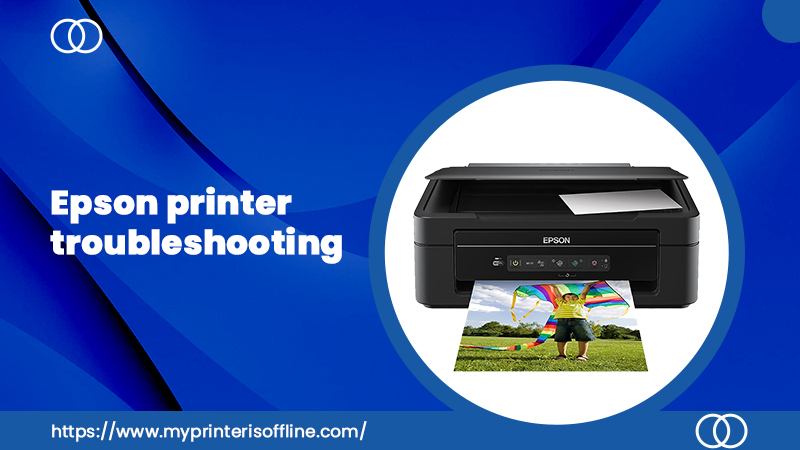
Epson printers are popular, and some issues frequently pop up:
- Error Codes: Epson printers often display error codes. Search the code on Epson’s support website for specific resolution steps.
- Ink Cartridge Issues: Ensure you’re using genuine Epson cartridges, as third-party ones can cause compatibility issues.
- Wi-Fi Connectivity: Epson printers can sometimes be picky about Wi-Fi connections. Try moving the printer closer to your router or using a wired connection.
Beyond Basic Troubleshooting
If these solutions don’t work, consider:
- Manufacturer’s support: Refer to your printer manual or the manufacturer’s website for detailed FAQs, troubleshooting guides, and contact options.
- Professional repair: If the printer is under warranty or seems complex, consider taking it to a certified repair technician.
Related Posts
How to connect to External Monitor easily in 1 minute.
External monitors in a world of multitasking and the need…
How to Easily Troubleshoot a Computer That Won’t Power On in 1 Second.
Facing a computer that refuses to power up can be…
Best Chemists and Pharmacies in Ridgeways
Pharmacies and chemists play a vital role in every residential…