
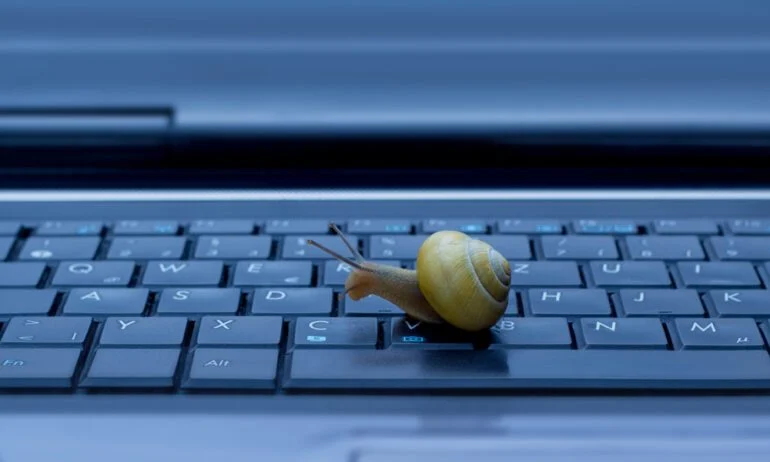
A slow laptop can be incredibly frustrating, hindering your productivity and making even basic tasks feel like a chore. But before you resign yourself to a sluggish machine, there are several steps you can take to troubleshoot and potentially fix the problem yourself.
This guide will walk you through some of the most common causes of slow laptop performance and provide solutions you can try at home.
Identifying a slow laptop.

Before diving into potential solutions, it’s essential to understand what might be causing your laptop’s sluggishness. Here are some common culprits:
- Resource-hungry programs: Certain programs, especially games or video editing software, can consume a significant amount of processing power and memory, slowing down your entire system.
- Background processes: Even when you’re not actively using certain programs, they might still be running in the background, draining resources.
- Startup programs: Programs configured to launch automatically at startup can slow down the boot process and eat into system resources.
- Malware: Malicious software, like viruses or spyware, can significantly impact your computer’s performance.
- Low storage space: When your hard drive is nearing capacity, it can fragment data, making it take longer for your computer to access information.
- Outdated hardware: Older computers with outdated hardware, particularly slower processors or insufficient RAM, might struggle to keep up with modern demands.
Troubleshooting Steps:
Once you have a general idea of what might be causing the slowdown, you can try the following steps to address the issue:
- Restart your computer: This might seem like a simple solution, but it’s often surprisingly effective. Restarting your computer closes any unnecessary programs running in the background and clears temporary files, potentially freeing up resources and improving performance.
- Identify and close resource-intensive programs: Check your Task Manager (Windows) or Activity Monitor (Mac) to see which applications are consuming the most CPU, memory, and disk usage. Close any programs you’re not actively using, especially if they are resource-intensive.
- Disable unnecessary startup programs: Many programs add themselves to the startup sequence, launching automatically when you boot your computer. Disabling unnecessary startup programs can improve boot times and free up system resources.
- Scan for malware: Run a thorough scan with your antivirus software to identify and remove any malware that might be impacting your system’s performance.
- Free up disk space: Delete unnecessary files, uninstall unused programs, and consider using cloud storage for large files you don’t need readily accessible. You can also use the built-in Disk Cleanup utility (Windows) to remove temporary files and other system clutter.
- Defragment your hard drive (HDDs only): This process reorganizes fragmented data on your hard drive, potentially improving access times and performance. However, this is not necessary for solid-state drives (SSDs).
- Update your software: Keeping your operating system, applications, and device drivers updated can improve performance and address security vulnerabilities.
Hardware Upgrades to help fix a slow laptop.(if software solutions don’t work):
If the software solutions above don’t resolve the issue, consider hardware upgrades:
- Upgrade your RAM: Adding more RAM can significantly improve performance, especially if you frequently run multiple programs simultaneously.
- Upgrade your storage: Replacing a traditional hard drive (HDD) with a solid-state drive (SSD) can drastically improve boot times, application loading times, and overall system responsiveness.
Seeking Professional Help:
If you’ve exhausted all the troubleshooting steps mentioned above and your laptop is still running slow, it might be time to seek professional help. A qualified technician can diagnose the problem and recommend further solutions, which may include hardware repairs or software reinstallation.
Additional Tips:
- Adjust visual effects: Reducing visual effects like transparency and animations can improve performance on older computers.
- Consider a lighter web browser: If your computer struggles with your current web browser, try switching to a more lightweight option.
- Invest in a cooling pad: If your laptop is overheating, a cooling pad can help improve performance and prevent damage.
Related Posts
How to Fix Common Microsoft Office Problems easily in 5 minutes(Word, Excel, etc.)
Microsoft Office is a powerful suite of productivity tools used…
How to connect to External Monitor easily in 1 minute.
External monitors in a world of multitasking and the need…
kaspersky internet security 3 user price in kenya
Get the best price on Kaspersky Internet Security 3-user licenses…