


How to Maintain and Clean Your Keyboard for Optimal Performance
In today’s digital age, a keyboard is an essential tool for both work and leisure. Whether you’re typing up reports, gaming, or simply browsing the internet, a well-maintained keyboard can make all the difference in your productivity and comfort. However, keyboards often fall victim to neglect, resulting in sticky keys, reduced performance, and a breeding ground for bacteria. In this guide, we’ll explore how to properly maintain and clean your keyboard to ensure it performs at its best.
Understanding the Importance of Keyboard Maintenance
Keyboards are more than just input devices; they are an extension of our digital identity. When keyboards are dirty or malfunctioning, it can lead to frustration and inefficiency. Regular maintenance not only prolongs the life of your keyboard but also enhances your overall experience while using it. A clean keyboard can improve typing accuracy, prevent key jams, and ensure that every keystroke is registered correctly.
Essential Tools for Keyboard Cleaning
Before diving into the cleaning process, it’s crucial to gather the right tools. Here’s a list of essentials you’ll need:
- Compressed Air: Ideal for blowing out dust and debris from between keys.
- Soft Cloth or Microfiber Towel: Used for wiping down surfaces without scratching.
- Cotton Swabs: Perfect for reaching into tight spaces.
- Isopropyl Alcohol: Effective for disinfecting and removing grime.
- Small Brush: A soft brush can help dislodge particles from hard-to-reach areas.
Steps to Clean Your Keyboard
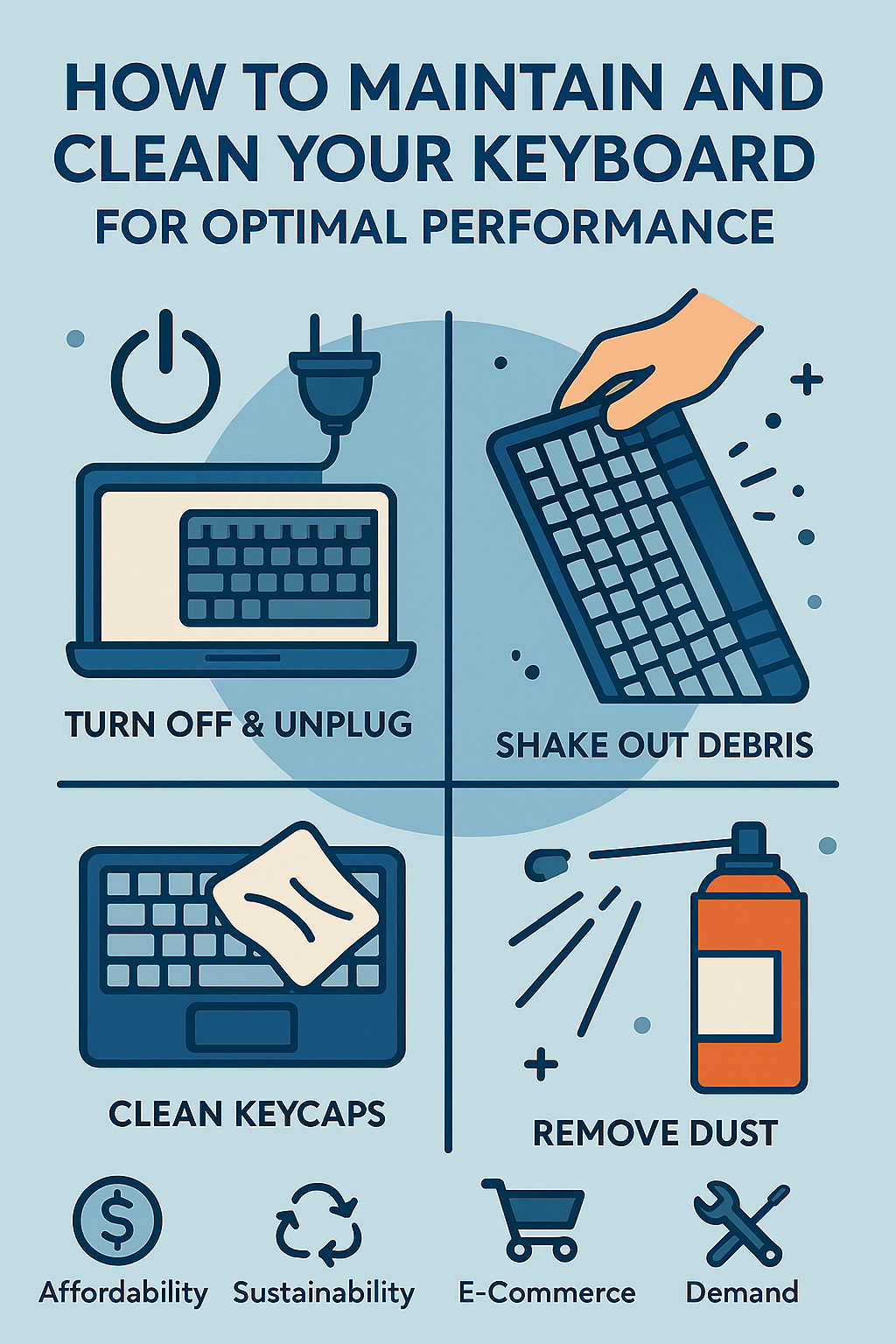
Step 1: Unplug and Power Down
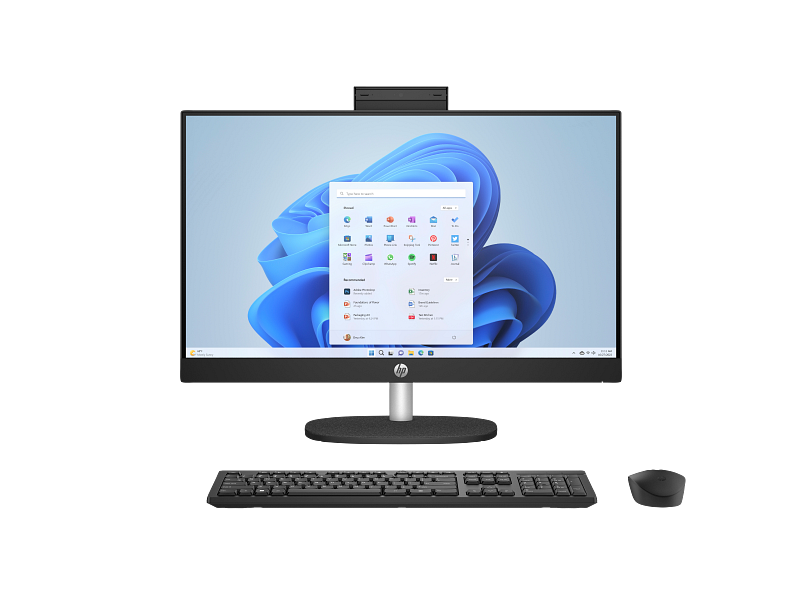
Before starting the cleaning process, ensure that your keyboard is unplugged from your computer or that it is powered down if it’s wireless. This precaution helps prevent any accidental inputs or short circuits.
Step 2: Remove Loose Debris
Turn your keyboard upside down and gently shake it to dislodge any loose debris. You can also use compressed air to blow out particles stuck between the keys. Make sure to do this in a well-ventilated area to avoid inhaling dust particles.
Step 3: Clean the Keycaps
If your keyboard has removable keycaps, use a keycap puller to gently remove them. Soak the keycaps in a bowl of warm water mixed with a small amount of mild dish soap. Allow them to soak for about 15 minutes, then rinse and dry thoroughly before reattaching.
Step 4: Disinfect the Keyboard
Take a soft cloth or microfiber towel and dampen it with isopropyl alcohol. Wipe down the surface of the keyboard, paying close attention to frequently touched areas. Use cotton swabs to clean around the keys and in any crevices. This step helps eliminate germs and bacteria, promoting a healthier typing environment.
Step 5: Reassemble and Test
Once everything is clean and dry, reattach the keycaps if you removed them. Plug your keyboard back in or power it up, and test each key to ensure they are functioning correctly. If any keys are sticky, repeat the cleaning process as necessary.
Maintaining Your Keyboard for Longevity
Consistent maintenance is key to keeping your keyboard in top condition. Here are some tips to help prolong its lifespan:
- Regular Cleaning: Aim to clean your keyboard at least once a month to prevent the buildup of dirt and grime.
- Proper Storage: When not in use, cover your keyboard with a dust cover or store it in a clean, dry place.
- Avoid Eating at Your Desk: Crumbs and spills are common culprits of keyboard damage. Try to keep food and drinks away from your desk area.
- Use Keyboard Protectors: Silicone keyboard covers can help shield against spills and dust, making cleanup easier.

Troubleshooting Common Keyboard Issues
Even with regular maintenance, keyboards can encounter issues. Here are some common problems and how to address them:
Sticky Keys
Sticky keys can be annoying and hinder your typing experience. If cleaning doesn’t resolve the issue, consider lubricating the key switches with a small amount of dielectric grease. Be cautious not to over-apply, as this can cause more harm than good.
Unresponsive Keys
If certain keys aren’t responding, check for physical obstructions beneath the keycaps. If the problem persists, it may be a software issue. Try updating your keyboard drivers or resetting the keyboard settings through your computer’s control panel.
Keyboard Not Connecting
For wireless keyboards, ensure that the batteries are charged and that the keyboard is within range of the receiver. If the problem persists, try re-pairing the keyboard with your device or consulting the manufacturer’s troubleshooting guide.
The Role of Ergonomics in Keyboard Maintenance
While cleaning is essential, considering ergonomic factors can also contribute to optimal performance. Ergonomic keyboards are designed to reduce strain and improve comfort during use. Investing in an ergonomic keyboard can prevent repetitive strain injuries and enhance your typing efficiency.
Additionally, maintaining proper posture and hand positioning can make a significant difference. Ensure your keyboard is placed at a comfortable height, and take regular breaks to stretch your hands and wrists. For more information on ergonomics, check out resources from the Chartered Institute of Ergonomics & Human Factors.
Takeaways
Maintaining and cleaning your keyboard is not just about hygiene; it’s about ensuring you get the best performance and longevity from your investment. By incorporating regular cleaning routines, addressing issues promptly, and considering ergonomic factors, you can enhance your typing experience and protect your keyboard from premature wear and tear.
For more comprehensive guides on keyboard maintenance and other tech-related topics, visit TechRadar and enhance your knowledge. Remember, a well-maintained keyboard is a step towards a more productive and enjoyable computing experience.
Advanced Cleaning Techniques for Different Keyboard Types
Not all keyboards are created equal. Depending on the type of keyboard you own, cleaning techniques can vary significantly. Let’s delve deeper into advanced cleaning methods for different types of keyboards:
Mechanical Keyboards
Mechanical keyboards are favored for their tactile feedback and durability. Cleaning these keyboards involves a few extra steps due to their complex switch mechanisms.
- Deep Cleaning: Occasionally, it’s beneficial to perform a deep clean by removing all keycaps and carefully cleaning the switches with a small brush and isopropyl alcohol. This can help maintain the smooth operation of each switch.
- Switch Lubrication: If you notice that the switches have become scratchy or noisy, consider applying a small amount of switch lubricant. This requires disassembling the switch, so it is recommended only for more experienced users.
Membrane Keyboards

Membrane keyboards are more common and less expensive than mechanical ones. Their cleaning process is generally simpler, but they require gentle handling.
- Keycap Removal: Unlike mechanical keyboards, membrane keycaps may not be as easily removable. If you decide to remove them, do so cautiously to avoid damaging the underlying membrane.
- Surface Cleaning: Use a slightly damp cloth with mild soap to clean the surface. Avoid excessive moisture, as it can seep into the membrane and cause damage.
Wireless Keyboards
Wireless keyboards offer flexibility and convenience but require special attention to battery compartments and connectivity components.
- Battery Maintenance: Regularly check and replace batteries to prevent leakage, which can corrode the internal components.
- Signal Interference: Clean the receiver and ensure there is no physical obstruction between the keyboard and the computer to maintain a strong connection.
Environmental Factors Impacting Keyboard Maintenance
Environmental conditions can also play a significant role in the health and performance of your keyboard. Here are some factors to consider:
- Humidity and Temperature: High humidity can lead to rust and corrosion of metal components, while extreme temperatures can warp plastic parts. Keep your keyboard in a climate-controlled environment to prevent these issues.
- Dust and Air Quality: If you live in a dusty environment, consider using an air purifier or placing your keyboard in a dust-free zone when not in use.
The Future of Keyboard Maintenance
As technology advances, so do keyboard designs and maintenance requirements. Emerging trends such as washable keyboards and those with antimicrobial surfaces are becoming more popular, offering easier maintenance options. Additionally, the rise of smart keyboards with self-cleaning capabilities may soon become a reality, reducing the need for manual cleaning.

Embracing Sustainable Keyboard Practices
In today’s environmentally conscious world, sustainable practices are becoming more important. Consider the following tips to make your keyboard maintenance routine more eco-friendly:
- Eco-Friendly Cleaning Products: Use biodegradable cleaning solutions and reusable cleaning tools to reduce waste.
- Recycle Old Keyboards: When it’s time to upgrade, recycle your old keyboard through a proper electronic waste recycling program.
For more insights into sustainable technology practices, visit the Greenpeace website.
Takeaways
Keyboard maintenance is a crucial aspect of ensuring optimal performance and longevity of your device. By understanding the specific needs of your keyboard type and adapting your cleaning routine accordingly, you can enjoy a seamless and efficient typing experience. Incorporate sustainable practices to make a positive impact on the environment while keeping your keyboard in top shape.
Stay informed about the latest keyboard maintenance techniques and technological advancements by exploring resources like Tom’s Hardware. A little care and attention can go a long way in preserving the quality and functionality of your keyboard for years to come.
Need help with “How to Maintain and Clean Your Keyboard for Optimal Performance”?
Ready to upgrade your tech? 🚀 Visit Joo Computers today for quality laptops, desktops, accessories, and expert support. 📞 Call / WhatsApp: 0717 18 35 90 📍 Location: Moi Avenue, Elegant Exhibition Shop A5, opposite Bihi Towers Walk in, call us, or message us now — let’s get you sorted!
Need help with “How to Maintain and Clean Your Keyboard for Optimal Performance”? Ready to upgrade your tech? 🚀 Visit Joo Computers today for quality laptops, desktops, accessories, and expert support. 📞 Call / WhatsApp: 0717 18 35 90 📍 Location: Moi Avenue, Elegant Exhibition Shop A5, opposite Bihi Towers Walk in, call us, or message us now — let’s get you sorted!